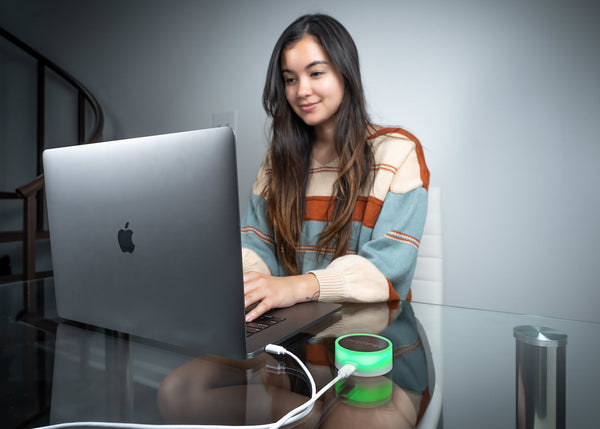
When we built the first MuteMe, it had one job: show everyone on the call when you were muted. A glowing button, red for muted, green for live. That job is still the heart of what we do. But your day is bigger than your meetings, and the hours between them deserve a button too. That is why we want to talk about our favorite MuteMe+ feature: not-in-meeting actions, the reason your MuteMe is about to become the most useful object on your desk.
"Mute in meetings. Do everything else in between."
The idea behind not-in-meeting actions, part of MuteMe+
What is MuteMe+
MuteMe+ is a collection of app features for MuteMe device owners. There is no subscription and nothing extra to buy. Connect a supported device and the features unlock. Every device family is included: the original MuteMe, MuteMe Mini, and MuteSync. Devices qualify no matter when you bought them, and the core mute and unmute software stays free for everyone.
There is even some slack built in. If you unplug your device, the MuteMe+ features keep working for up to 30 days. Plug it back in whenever you like and the clock resets.
One button, two jobs
Here is how it works. Whenever you are in a meeting, or any app is using your microphone, pressing your MuteMe does exactly what it always has: mute and unmute. Nothing about that changes.
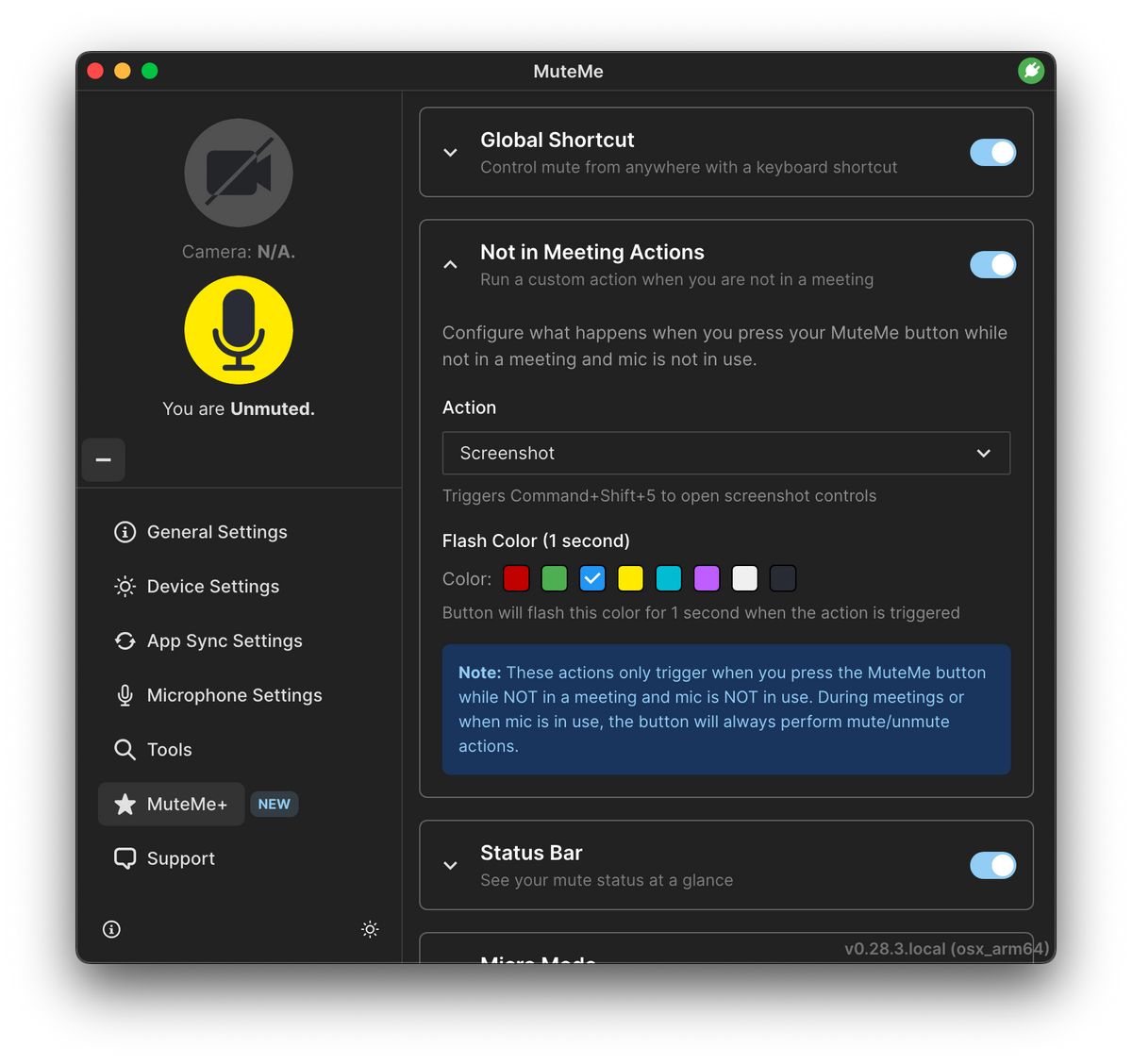
The moment the meeting ends and your mic is free, the same press runs the action you assigned in the app. The button flashes a color you pick for one second, so you always know the action fired. And if you are wondering what happens when you press it mid-call by accident: nothing out of the ordinary. During meetings, the button is a mute button first, always.
Built-in actions worth assigning
One press, your page
Open a webpage
Assign any URL and the button opens it in your default browser. The timesheet you fill in three times a day, the project board you live in, the standup notes you update every morning: one press and they are on screen, no tab hunting.
For shared spaces
Mute your speakers
A colleague walks over to your desk, or you need quiet in an open office: one press mutes your system speakers. You can have them come back automatically the moment a meeting starts or your mic wakes up, and you choose whether they restore to their previous state or to a volume level you set. It is the kind of feature that quietly saves you several times a week.
Show, don't tell
Take a screenshot
The button triggers your operating system's own capture flow: Snip & Sketch on Windows, the screenshot controls on macOS, or your desktop's screenshot tool on Linux. Grab a region, mark it up, send it on its way.
Small conveniences
Calculator, emoji, and Copilot
Open the system calculator for quick math, pull up the emoji keyboard for the message you are typing, and on Windows, launch Copilot. None of these are hard to do by hand. They are just faster when the button is already under your thumb.
Build your own
Beyond the built-ins sits a full command builder. A custom command can run a shell script (bash on Mac and Linux, cmd on Windows), a PowerShell script on Windows, an AppleScript on macOS, or simulate any keyboard shortcut. Steps run in sequence, you can set a delay between them for apps that need a moment to load, and a built-in Test button lets you try the whole chain before it ever touches your button. Save up to five favorites and they stay one click away in My Commands.
Variables make the commands smarter. Drop {{date}}, {{time}}, {{datetime}}, {{clipboard}}, or {{timestamp}} into any step and the app fills in the live value at the moment you press.
If building from scratch sounds like work, start from the preset library instead. There are more than fifteen ready-made commands on every platform: Open Terminal, Lock Screen, Show Desktop, Play/Pause Music, Volume Up and Down, New Browser Tab, plus platform picks like Clipboard History and Task Manager on Windows, Spotlight and Empty Trash on macOS, and Rofi or dmenu app launchers on Linux.
Recipe: the walk-away
Someone swings by your desk and you are stepping out for a minute. A two-step custom command handles it: a mute step for your speakers, then a lock step for your screen. On Windows that is the volume mute media key followed by WIN+L. On a Mac, a one-line AppleScript mutes the output, then Cmd+Ctrl+Q locks it up. Add a short delay between steps if you want the mute to land first.
Recipe: the morning page
The simplest setup in the whole feature, and somehow the one that sticks. Choose Open Webpage, paste in your timesheet or project board, done. Your workday starts with one press instead of six browser tabs.
Recipe: the focus log
For the tinkerers: a one-line shell command like echo "Focus block {{time}}" >> ~/focus.log turns the button into a tiny time tracker. Every press stamps the current time into a file, courtesy of the {{time}} variable.
Also in MuteMe+
Not-in-meeting actions are the headline, but MuteMe+ ships with three more owner features worth a look once your action is set up.
On screen
The mute status bar
Your MuteMe sits on your desk, but your eyes are on the screen. The optional status bar puts a small, persistent indicator on your desktop, so you always know whether you are muted or live, even when the device is out of view or you stepped away.
Keyboard first
Global hotkeys
Set a system-wide hotkey that simulates a MuteMe button press from anywhere, no matter which app is in focus. It was one of the most requested features we have ever shipped.
Compact view
Micro Mode
Shrink MuteMe down to a small, draggable button view that floats above your other windows, keeping your mute state one glance away. The tray menu returns you to the full app whenever you need it.
Getting started
Make sure you are running the latest version of the MuteMe app from our download center. Then connect your device, open the app settings, and find not-in-meeting actions under MuteMe+. Pick an action, choose a flash color, and give the button a press outside a meeting to see it work. The status bar, hotkeys, and Micro Mode live in the same place, ready when you are.
Good to know. Available actions depend on your app version, operating system, and configuration. The core mute and unmute software remains free, and features may move into the free app over time as new owner features are added.
What's next
We are not done. MuteMe Click is coming soon, and we are exploring new ways to connect your button with the rest of the tools on your desk. If there is an action you wish your MuteMe could handle, tell us. Some of the features in this post started as exactly that kind of suggestion.
Thank you for building your workday around our little button. There is more on the way.
The MuteMe Team