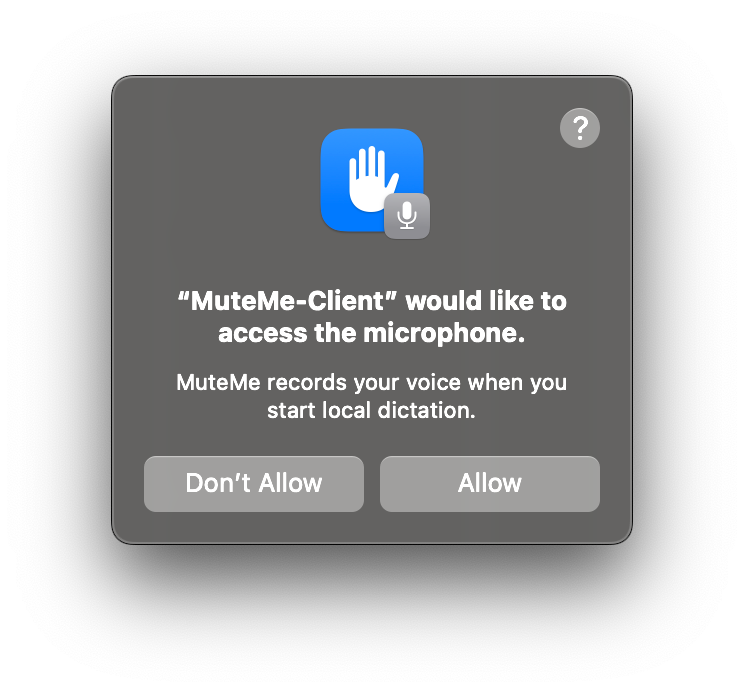
- Microphone
- Use Automatic microphone or select an available input. Automatic follows your default input, or chooses a physical input when the default is MuteMe Virtual Microphone. If names are missing, allow access, try recording, and reopen settings.
- Language
- English is the default. Choose Spanish, French, German, Hindi, Chinese, Japanese, or Detect automatically. Selecting the language you are speaking can help when automatic detection struggles. These are the choices exposed in the app.
- Speech sensitivity
- Choose Quiet voice / room, Normal, or Noisy room. Silence detection follows audio level; background noise can affect when Toggle recording ends.
- Stop after silence
- In Toggle (Press) mode, keep automatic stopping on and choose a Silence duration of 3–30 seconds, or turn it off and finish with another press. The two-minute session limit still applies.
- Live preview
- Show or hide a provisional draft in the listening panel. It covers recent speech and can be revised. Computers marked slow during setup skip it to prioritize the final transcript.
- Paste automatically
- Choose immediate delivery where supported or clipboard-only use. Automatic mode adds a trailing space so successive phrases separate naturally; ordinary copy-only mode does not. In Linux clipboard-only sessions, the corresponding control is Add a trailing space.
- Device colors
- Choose separate Model loading color, Hold recording color, Toggle recording color, and Transcribing color. Normal device status returns when the session ends.
- Load model at startup
- Enable it for a faster first dictation after MuteMe starts. It is off by default. It loads the speech model into memory without turning on the microphone.
- Unload model after
- Choose Automatic, a Custom duration from one minute to 24 hours, or When MuteMe closes. Keeping the model loaded reduces the wait between recordings; it does not keep recording.
Speed without a cloud service
On Windows, setup compares the CPU with a compatible Vulkan GPU and chooses the GPU only if its check succeeds and takes more than 10% less processing time. Apple Silicon can use Metal; Intel Mac and Linux use CPU processing. An optimized CPU path is selected where supported.
The status area shows Processing, Microphone, Pasting, and Model. Where available, use Check performance again after a driver or hardware change. GPU acceleration is optional; the app has a CPU fallback.
Balance readiness and memory
The 148 MB download is the model’s file size. A loaded model can use several hundred MB of RAM plus GPU memory where applicable. Unloading releases memory; the saved model can load again without another download.
Automatic retention depends on installed RAM: up to 4 GiB → 15 minutes; over 4–8 GiB → 30 minutes; over 8–16 GiB → 1 hour; over 16–32 GiB → 8 hours; over 32 GiB → 24 hours.
Turning dictation off, sleeping, or closing MuteMe unloads it. Remove download deletes the model file when you no longer need it.