

New in the MuteMe Beta Build
You know what you want to say. An email reply, a thought for your project notes, the first paragraph of a document. Sometimes the easiest way to get it onto the screen is to say it out loud.
Our latest alpha brings that moment to the button already on your desk. Dictation is a new MuteMe+ Not in Meeting Action, and the part we are most excited about is Whisper: speech recognition that runs on your computer, wrapped in a simple press, speak, and release workflow.
For everyday writing with MuteMe, Whisper is the mode we recommend trying first. It gives you control of the whole experience, from starting a recording to putting the finished text into your work.
Click in your text field, hold MuteMe, and wait for Listening.
Say the thought in your own words. Pause when you need to.
Let Whisper finish the transcript, then review and keep writing.
Stay with the thought
A useful dictation tool should fit the way you think. You might know the whole sentence before you start. You might need a moment halfway through it. With Push-to-Talk, you keep holding the button while you speak, and release when you are done. Pausing does not start a silence countdown in this mode.
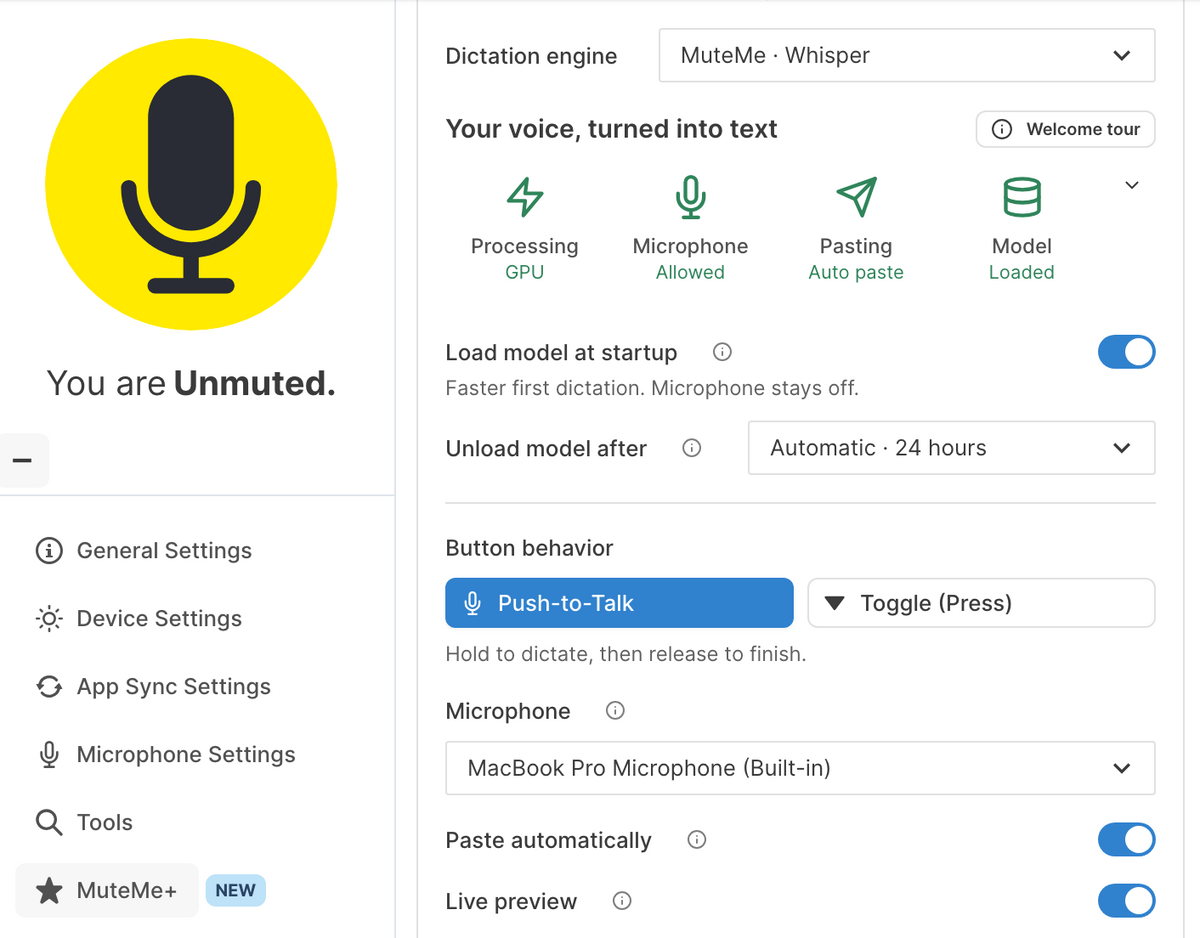
Prefer a lighter touch? Choose Toggle: press once to start and again to finish. You can also have it stop after a period of silence. A floating waveform and timer show the session, while configurable device colors help you see when MuteMe is loading, listening, or transcribing.
When you finish, Whisper processes the recording locally and copies the final text to your clipboard. With Paste automatically enabled and supported, MuteMe can paste it into the app you started in. Keep the right text field focused, give the result a quick read, and continue.
Think of a short project update you could explain in one breath, or a reply that is easier to say than type. The button gives those everyday moments a repeatable rhythm.
Why choose Whisper over built-in dictation?
Built-in dictation is a convenient starting point. Whisper can be a better fit when you want more control over how dictation feels: your chosen microphone, your language, hold-to-talk or toggle, a visible draft, and your preferred way to deliver the finished text. Those choices live together in MuteMe, across supported Mac, Windows, and Linux alpha builds.
The recognition model matters, too. Whisper is OpenAI's open-source speech recognition system, trained on a broad range of multilingual audio. OpenAI's research describes its robustness to accents, background noise, and technical language. That makes it an appealing alternative if your built-in engine struggles with the way you speak or the words you use.
Recognition quality and speed still depend on your language, microphone, and computer. On Mac or Windows, try both engines with the phrases you actually write. Our reason for starting with Whisper is the combination: capable speech recognition, local processing, and a smoother workflow built around your MuteMe button.

A live draft, then your finished text
Turn on Live preview to see a provisional draft in the floating panel while you speak. It follows recent speech, so words may change as more audio is processed. It is feedback while you think, rather than the final version of your message.
The finished transcript arrives after you stop, when Whisper processes the full recording. Words do not stream into your destination app during the recording. Preview can be skipped on slower computers; final transcription still runs. As with any dictation, check names, numbers, and punctuation before sending.
Ready for the next idea
Loading a speech model takes time. Keeping it loaded between recordings avoids repeating that work for every short reply. You can choose how long the model stays in memory, or have it load when MuteMe starts, so the next session has less setup to do.
A ready model does not mean a recording microphone. Preloading uses memory to prepare the speech engine. Recording begins when you start a dictation session. You can trade some memory use for fewer reloads, or let the model unload when you are finished.
Your voice, processed on your computer
Whisper setup includes a one-time download of the multilingual Whisper Base model, about 148 MB, from MuteMe. Once the model is installed, transcription works offline. Your audio is processed locally and is not sent to a transcription service.
The finished words follow your clipboard and the app where you paste them. Clipboard history, cloud clipboard syncing, and the destination app can still store or sync that text according to their own settings.
Want to keep using your operating system's engine? MuteMe also offers macOS · Built in and Windows · Built in. These send the system's dictation shortcut; Apple or Microsoft handles recognition and text entry. Their language, connectivity, and privacy behavior follows the OS, rather than Whisper's local processing. See Apple's Dictation guide or Microsoft's voice typing guide for your setup.
Start with one short note
In an alpha build with Dictation, connect your supported MuteMe device and open MuteMe+ → Not in Meeting Actions. Choose Dictation, select MuteMe · Whisper, and follow the setup steps to download the model and enable local processing.
You must allow microphone access. MuteMe is the control; your computer's selected microphone captures your voice. On macOS, automatic paste also needs a separate Accessibility permission. If you prefer, turn automatic paste off and paste the clipboard text yourself. Linux Wayland sessions use this manual-paste workflow.
Made for writing between meetings. Start with an available, unmuted microphone outside a detected meeting. The alpha supports short recordings of up to two minutes; this feature is not a meeting-transcription tool.
Try the next email reply, a note to yourself, or the opening of a document. Hold the button, wait for Listening, and let the thought come out. Then tell us how it worked through the app's Support tab. Your feedback helps shape the alpha.
The MuteMe Team
