

MuteMe
Windows Drivers
These steps apply only to MuteMe Original batch 001–003 devices using the legacy Windows firmware updater.
Confirm the batch first
Check the device batch before installing this driver. This is not a normal MuteMe app installation step, a MuteSync driver or the firmware procedure for newer devices. Start at Device firmware if you are unsure which path applies.
Install the matching driver
Download and extract
Download the original MuteMe legacy driver ZIP and extract it. On a managed computer, ask IT to approve the driver installation.
Find the updater device
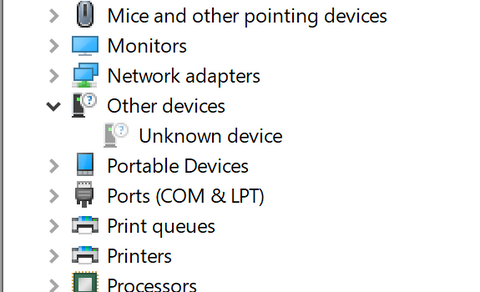
Open Device Manager from the Windows Start context menu. Choose View → Show hidden devices. Identify the device associated with the connected legacy updater; it may appear under Other devices as Unknown Device. Do not replace the driver for an unrelated unknown device.
Point Windows to the extracted files
Right-click the matching device, choose Update driver → Browse my computer for drivers, select the extracted MuteMe Drivers folder and include its subfolders. Continue only if Windows identifies the expected driver.
Reconnect and return to the updater
When installation completes, reconnect the MuteMe as instructed and return to the legacy firmware updater. If installation is blocked or the device is not identified, keep the exact Windows error for support; do not disable driver-signature protections.
Reference screenshots
View the original screenshots
These screenshots come from the original guide; labels and appearance may differ in your installed version.


We’re here to help
Still need a hand?
The best way to contact us is through the Support tab in the MuteMe app. Include your device, operating system, app version and what you have already tried.